
-
Rust Best Settings: FPS Boost, Performance & Visibility Guide (2025)
Best Rust Settings for FPS & Performance (2025 Guide)
Rust can be brutal on both new players and older PCs. If your game feels choppy, stutters in fights, or drops frames around monuments, dialling in the right settings makes a huge difference. This guide walks you through the best Rust settings for FPS, performance, and visibility in 2025, whether you’re on a low-end setup or a high-refresh monitor.
If you’re curious how healthy Rust is right now, you can also check player activity and trends in our Rust Steam Charts Guide, which breaks down long-term growth and average player counts over time.
Screen & Display Settings
Start with the basic display settings in Rust. These control how the game is drawn to your monitor and have a big impact on input lag and FPS:
- Screen Mode: Use Exclusive Fullscreen for the lowest input latency and best stability.
- Resolution: For most players, 1920x1080 is the best balance of clarity and performance. Drop to a lower resolution if you struggle to stay above 60 FPS.
- Refresh Rate: Match this to your monitor (144Hz, 165Hz, 240Hz, etc.) so Rust takes full advantage of your display.
- V-Sync: Turn Off to reduce input delay. If screen tearing really bothers you, you can test it On, but most competitive players keep it Off.
- NVIDIA Reflex / Low Latency (if available): Turn this On or to On + Boost to reduce input lag.
Graphics Quality Settings
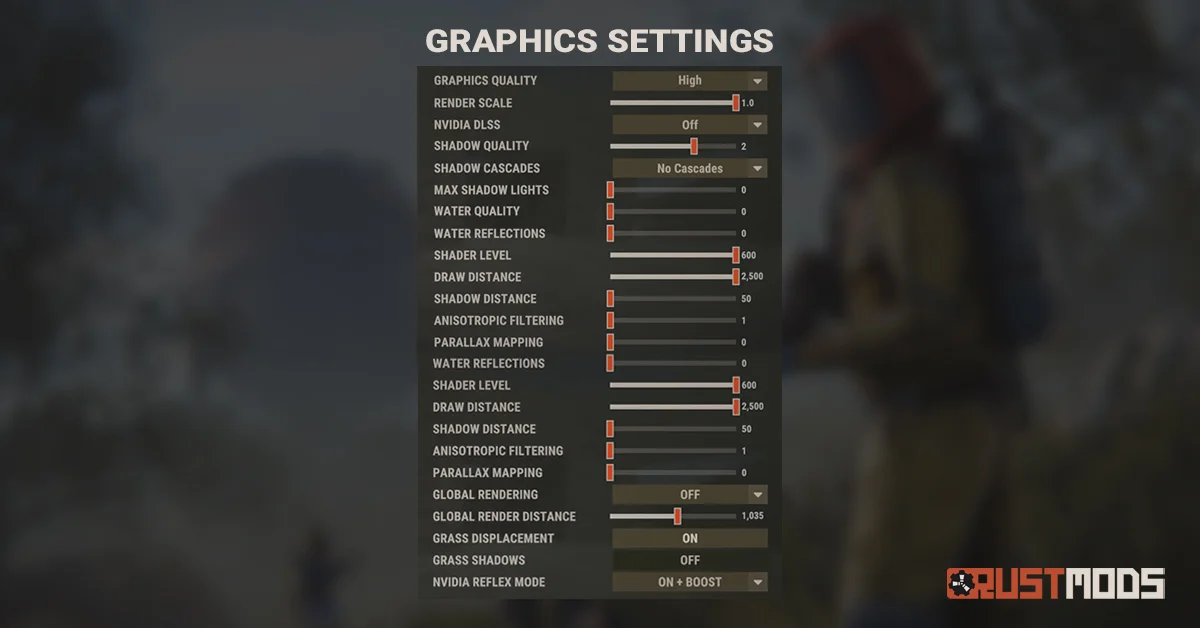
These options are the main FPS killers in Rust. Lowering them correctly dramatically boosts performance, especially on busy servers and around large bases:
- Graphics Quality: Set this to 3–4 on mid-range PCs, or 1–2 on low-end hardware. You’ll fine-tune details below.
- Shadow Quality: One of the heaviest settings in the game. Set to 0–1. You don’t need pretty shadows to win fights.
- Water Quality: Lower this to 1 unless you spend most of your time on boats.
- World Reflections & Water Reflections: Set both to 0 or 1 for extra FPS.
- Parallax Mapping & Contact Shadows: Disable or set to 0; they add detail you rarely notice in combat.
Mesh, Terrain & Particle Settings
Rust’s world is filled with monuments, bases, trees, and clutter. These settings decide how detailed all of that looks and how hard your PC has to work:
- Terrain Quality: Keep around 0–2. Higher terrain quality costs FPS and rarely helps you spot enemies better.
- Object Quality: 2–4 is a good sweet spot. Too low and some objects look awful, but ultra is unnecessary.
- Tree Quality / Max Tree Meshes: Lower these to reduce foliage density and improve visibility in forests.
- Particle Quality: Set to 1–2. High particle effects (smoke, explosions) are heavy and distracting.
- Max Gibs: Turn this down to reduce debris and clutter when things blow up or break.
Draw Distance & LOD Settings
View distance and level-of-detail (LOD) settings affect how far and how detailed objects are rendered. Rust is very CPU-heavy here, so tweaking these helps keep frames stable on full servers:
- LOD Bias: Keep this at a reasonable value (around 1–1.5) so distant objects stay visible without overloading your PC.
- Draw Distance: You don’t need to max this. A mid-range value lets you see what matters without killing performance.
- Grass Distance: Reducing this can help FPS and make enemies slightly easier to see in some situations.
Image Effects & Post-Processing
Most post-processing options look nice in screenshots but hurt visibility during actual gunfights. Disable or reduce as many of these as possible:
- Motion Blur: Turn Off. It makes tracking targets harder and adds a smeared look when moving.
- Depth of Field: Turn Off so your whole screen stays sharp, not just the centre.
- Bloom, Lens Dirt, Sun Shafts: Disable or set very low. These effects add brightness and glow that can obscure enemies.
- Sharpening: A small amount of sharpening can help visibility. Avoid pushing it too high or the game will look noisy.
- Vignetting: Turn Off so your edges stay clear and bright.
Performance Tips for Low-End PCs
If you’re on a lower-end system or playing on high-pop servers, use these extra tweaks:
- Drop the resolution scale slightly below 100% if you desperately need FPS, but don’t go so low that spotting players becomes difficult.
- Turn off any background apps (browsers, launchers, overlays) to free CPU and RAM.
- Limit browser sources, videos, and Discord streams while playing Rust.
- Stick to smaller pop servers if your PC struggles on busy modded or 300+ pop servers.
Why These Settings Matter in Rust
Rust is more than just raw frames-per-second — it’s also about clarity. The right combination of settings makes it easier to spot players in bushes, track targets in compound fights, and react quickly during door pushes. Once your game runs smoothly, you’ll find aiming, looting, and building all feel more consistent.
If you want to go even further in optimizing your competitive advantage, you can explore advanced tools and configs in our Rust Cheats & Tools overview, which covers features like ESP and aim assistance for players looking beyond standard gameplay.
Learn More About Rust Performance & Population
Performance and FPS always feel better on a healthy game with active servers. For a deeper look at how Rust has grown over time, average players, and peak activity, don’t forget to check our full Rust Steam Charts guide. It’s a great way to understand when servers are most active and when to play for the smoothest experience.