
-
Rust FPS Boost: Launch Options & Performance Tweaks (2025)
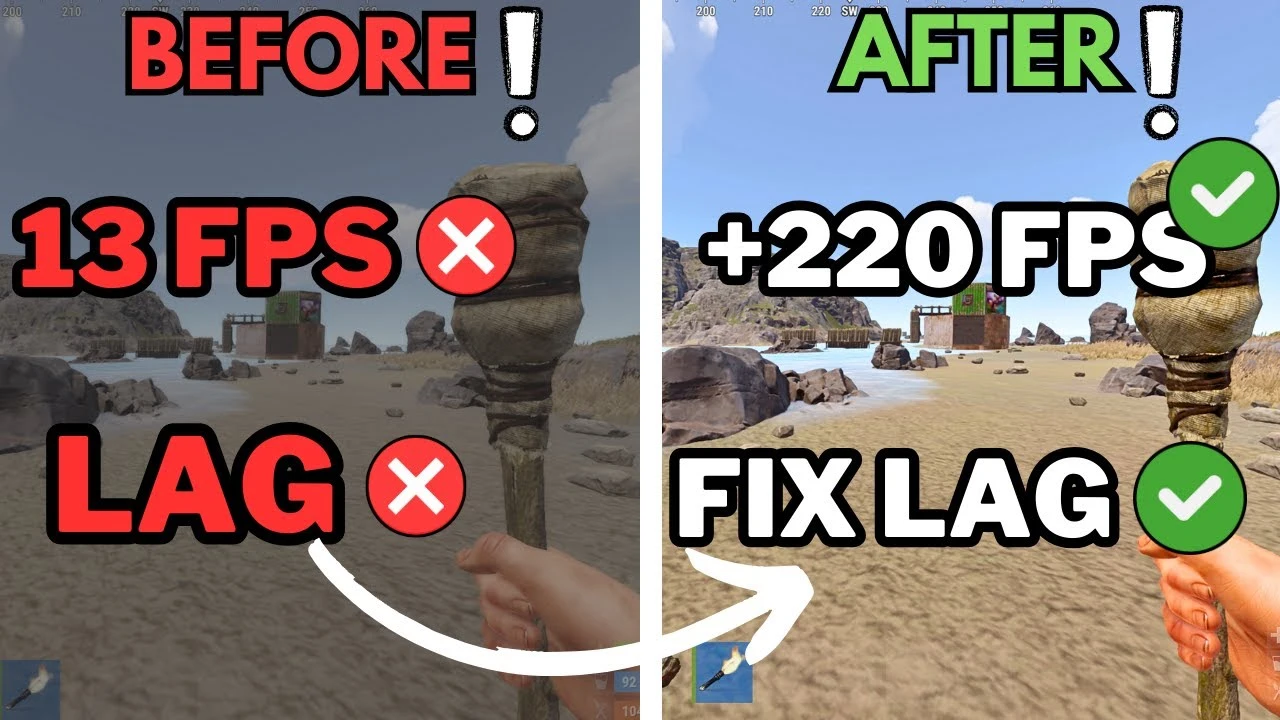
Rust FPS Boost Guide – Launch Options, Config Tweaks & Performance Tips (2025)
Rust is one of the most demanding survival games on PC, especially during large raids, compound fights, or on high-pop servers. If you're dealing with low FPS or stutters, this guide breaks down the best Rust launch options, config tweaks, and system optimisations to help you boost performance instantly.
For the best results, combine this guide with our Rust Best Settings & Performance Guide. If you’re curious about Rust’s long-term performance trends, player count, and server activity, check out the full Rust Steam Charts Guide.
Best Rust Launch Options (2025)
Launch options are the first step in improving Rust’s performance. These commands help optimise memory usage, reduce stuttering, and give your system more stability:
-high -malloc=system -force-d3d11 -no-browser
- -high – Runs Rust with higher CPU priority.
- -malloc=system – Reduces stutters by improving memory allocation.
- -force-d3d11 – Forces DirectX 11 for better stability.
- -no-browser – Removes the in-game browser, lowering memory usage.
Optional Launch Options
You can experiment with these if you have crashing or heavy stuttering:
-force-d3d9
This can run smoother on very old GPUs, though graphics quality will drop.
-gc.buffer 4096
Helps reduce garbage collection stutters on higher RAM systems (16GB+).
Rust FPS Boost Config Tweaks (autoexec.cfg)
You can create or edit your autoexec.cfg to load performance commands automatically. Place this file inside:
steamapps/common/Rust/cfg/
Add these lines:
graphics.fov 90
graphics.shadowcascades 0
graphics.lodbias 1.5
graphics.shadowquality 0
fps.limit 0
global.soundwaves 0
- graphics.lodbias 1.5 – Improves visibility and reduces LOD pop-in.
- graphics.shadowquality 0 – Removes expensive shadow rendering.
- fps.limit 0 – Removes unnecessary FPS caps.
Disable Unnecessary Rust Features
- Companion App – Turn off in-game notifications.
- Twitch Drops UI – Disable for cleaner menus and slightly reduced load.
- Streamer mode: Optional, but removes extra UI clutter.
NVIDIA Control Panel Settings (For NVIDIA Users)
- Power Management: Prefer Maximum Performance
- Low Latency Mode: On or Ultra
- Texture Filtering: High Performance
- G-Sync: Off for competitive play
- Vertical Sync: Off
Windows Optimisation Tips
- Disable Xbox Game Bar, Game DVR & Background Recording.
- Turn off hardware-accelerated GPU scheduling (HAGS) if Rust stutters.
- Set Rust.exe priority to High in Task Manager.
- Disable full-screen optimisations via Rust.exe → Properties → Compatibility.
- Keep GPU drivers up to date.
Extra Tips for Low-End & Mid-Range PCs
- Run Rust on an SSD – massive load time and stutter improvements.
- Lower your resolution to 1600x900 if FPS is still low.
- Close Chrome, Discord streams, and overlays before playing.
- Avoid high-pop modded servers if your PC struggles.
Why FPS Matters in Rust
Higher FPS gives smoother aim, faster reaction time, and clearer visibility. During raids, compound pushes, roof fights, and airlock plays, low FPS can cost you the entire run. A smooth and optimized Rust setup helps you survive more fights, farm efficiently, and experience fewer stutters in large bases.
If you want even more competitive edge, you can explore advanced tools in our Rust Cheat Tools overview, which explains ESP, aim assistance, and other features used by high-level players.